
Suppliers and Customers and known as Counterparties in ChainTraced. You need to set up your business partners here to be able to link them to your records and interact with them.
A counterparty can be Connected or Not connected. Being connected to a counterparty means that you will share related data with them and can create and respond to Requests. You will only share data in the Inbound and Outbound sections that are linked to the counterparty.
If a counterparty is not connected you will not share real time data, but you can still communicate and send documentation with email.
Create and Connect to new Counterparty
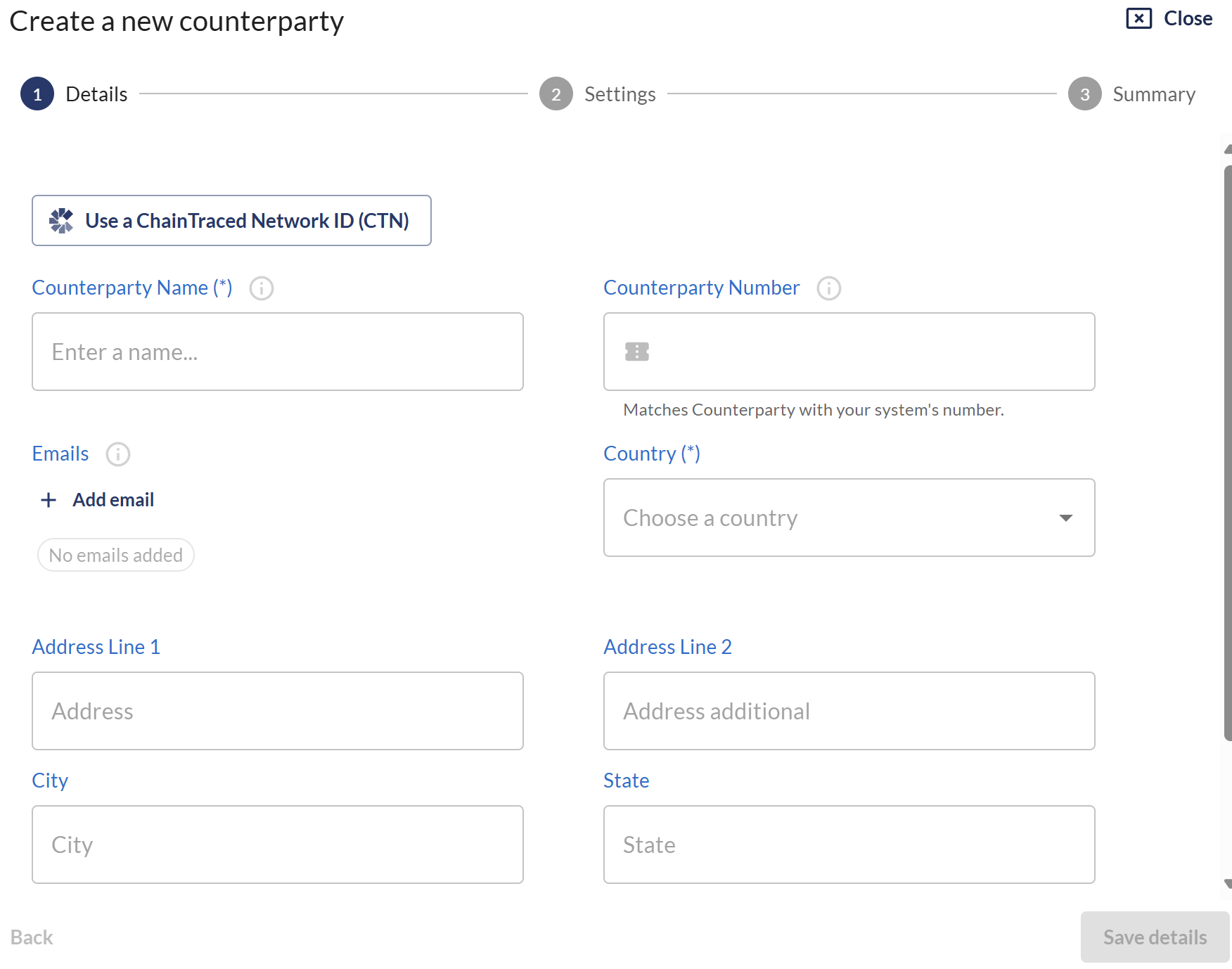
Create a new Counterparty
-
Go to "Counterparties"
-
Click "+ Create New Counterparty"
-
Add relevant information about your counterparty e.g. Company Name, Country & E-mail(s)
-
Click "Save"
Request to Connect
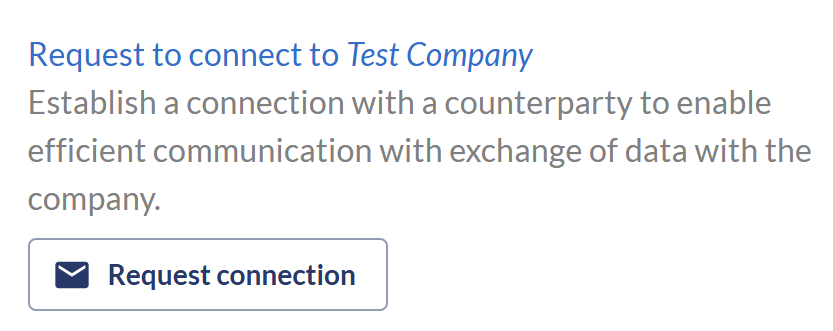
You invite and connect to a Counterparty when you want to interact with them on the platform. If your Counterparty does not have a ChainTraced company when you invite them to connect, they will be asked to create one.
Steps
-
Go to Counterparties and Open/View the existing Counterparty.
-
Click "Request Connection".
-
Enter an email address to a connect person at the counterparty.
-
The contact person will be requested to create a user and company account. Once this is completed, your ChainTraced company accounts will be connected and you can start to interact in the platform.
Managing incoming connection requests
When a counterparty has added your company using your CTN number, e.g. if you have provided the number to them to enable a quick way to connect, a connection request will appear in your Counterparty section. To manage this request:
-
Go to "Counterparties" and click on the "Pending Connection Requests". You can either Approve or Reject a pending request.
-
Approve: allow the exchange of data between your company and the requesting company.
-
Select the relevant Counterparty (you can do this later by searching for an existing connection, see below)
-
Click "Approve" to connect.
-
Confirm approval and decide if you want to copy their company information.

Counterparty settings
Auto approve (Certificates)
Relevant for your Supplier(s).
Certificates
Checking this box means that all incoming certificates from the Supplier will be automatically approved if the quality data attached to the manufacturing lot is within specified product requirements, and no “Early Warnings” are triggered, see section 10.3.1. Otherwise, certificate will need to be reviewed and approved by you (will end up under status “Needs your Approval”).
If this box is left unchecked, all Certificates will go into status “Needs your Approval” after being submitted by the Supplier and will need to be manually approved.
Traceback (Certificates)
Relevant for your Customer(s).
Checking this box leads to sharing internal lot data with the Customer. The Customer will be able to see the Inbound and Outbound Certificates and the processes in-between, related to the lots you send in Outbound. If your Supplier has also checked-in this box, their lot data will also be made available to you and shared with your Customer.