
Get Emission data from supplier
You can get emission data from a supplier, if the supplier’s product number that corresponds to your purchased product is known to you. We recommend that you discuss this with your supplier, and that you request a list of available product numbers from the supplier to be used when you request data. You should also verify that the supplier can provide updated data for the products in question.
To get data from a supplier and approve it in your system without having to wait for the supplier to respond, follow these steps.
-
Go to Part Approvals - Inbound in the side menu and click Create new part approval in the top right corner.
In this case, you should not use the Request missing PCF function from the Product registry.
-
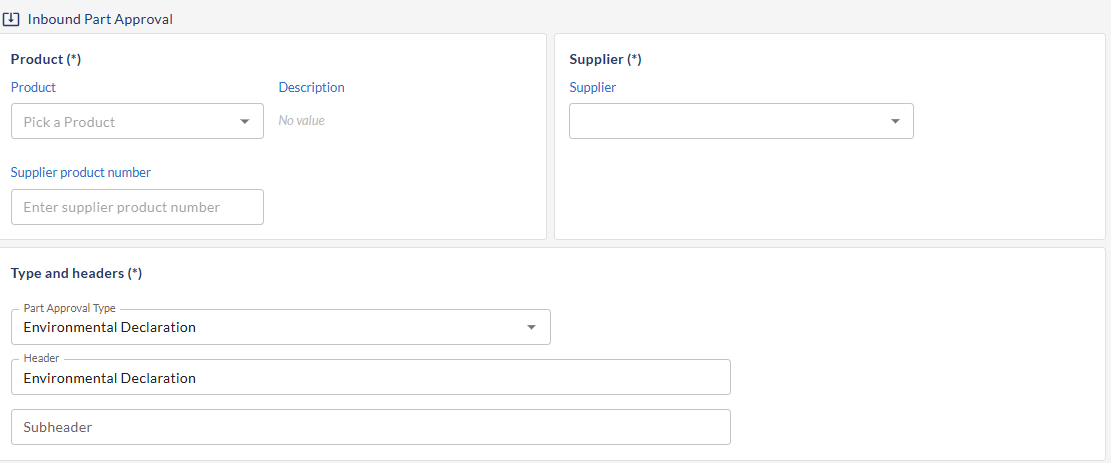
Select the product and supplier for which you want to get emission data.
-
Enter the supplier product number that corresponds to your product.
It is essential that you type the supplier's product number exactly as stated by the supplier. This is where you need the list of available product numbers from the supplier.
-
Select Part Approval Type - Environmental declaration and click Request from Supplier.
If you have typed the correct supplier number and the supplier has the product setup with emission data, you should now see your request in the list of Inbound Part Approval in Status requested with the emission data for the product already assigned in the column Emissions.
If you don’t see the Emissions column, select it from the columns icon.
See the section Navigation | Filtering
-
Open the Request to review and Approve the data. This will assign the emissions from the supplier to your purchased product.