
Follow this guide when your customer has sent Requests and you want to respond with an attached PDF certificate.
This guide assumes that you have the company setting Copy Customer Requirements enabled in your company settings. The customer’s product number and requirements are then automatically copied into your Product Registry.
You will find all Requests in the Lot Approval-Customer records section.
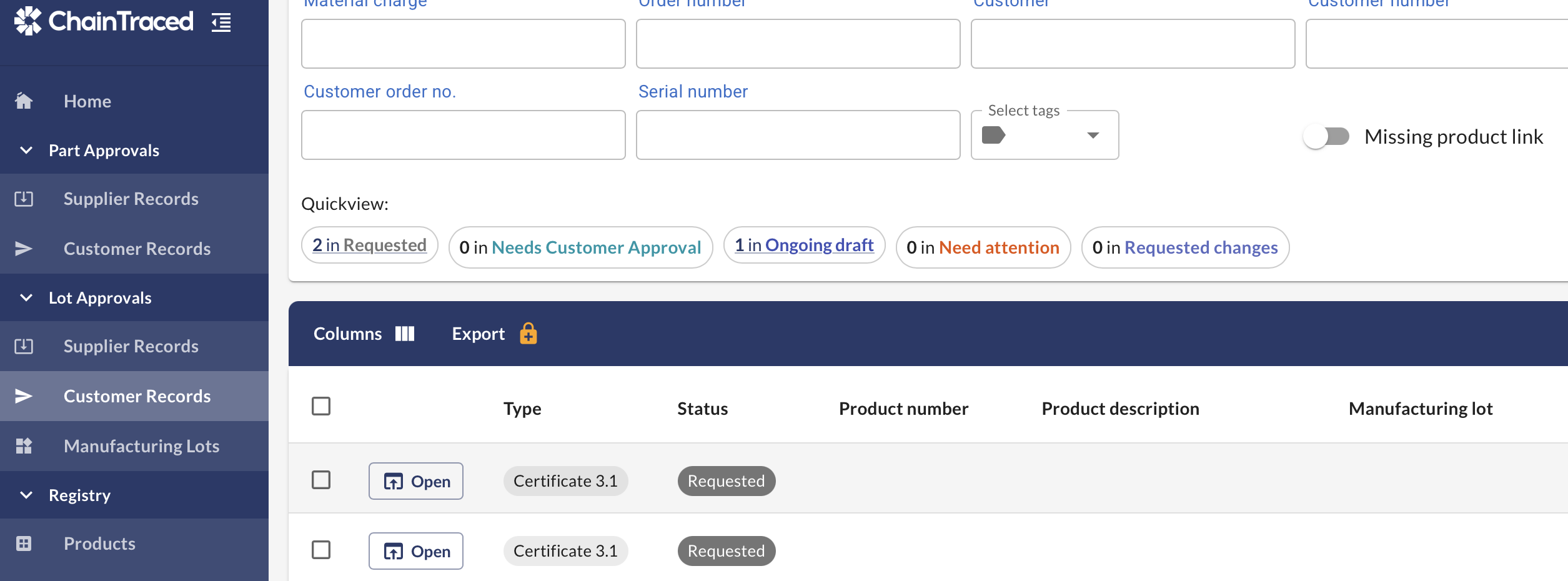
Click Open next to the Request you want to respond to.
Create a Lot
A lot is created for traceability purposes. It can contain data such as chemical composition, mechanical properties, dimensions etc. In this case where we only want to attach a pdf certificate, the lot will not contain any data other than the lot number itself.
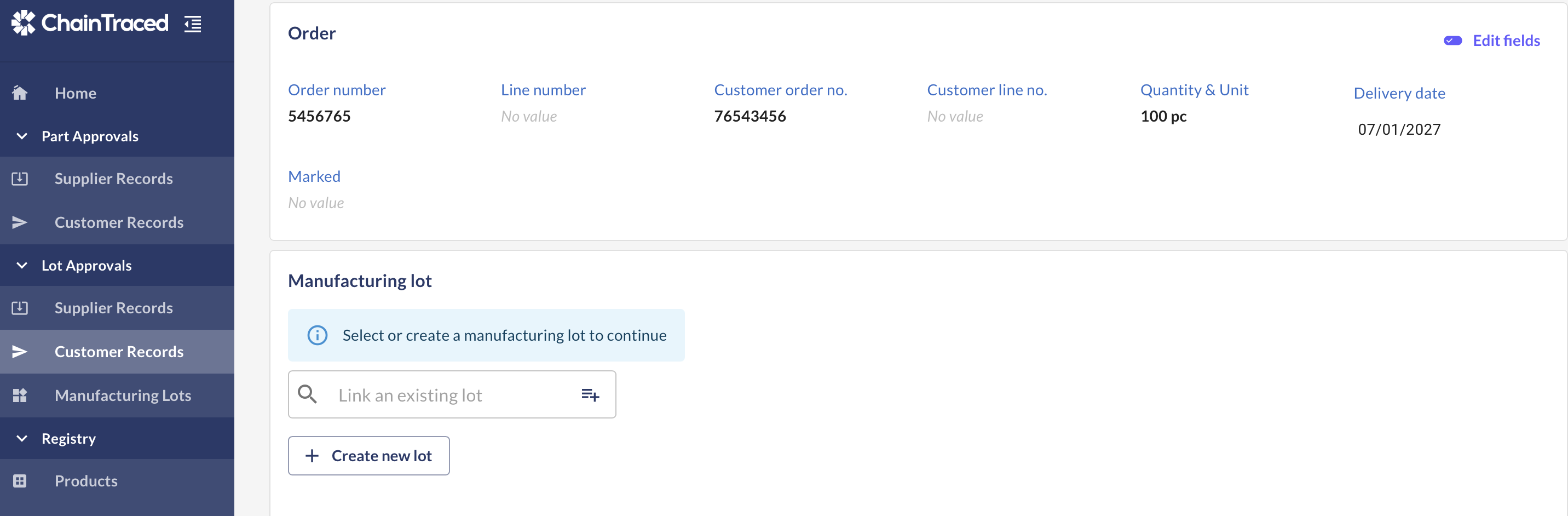
When the Request is opened, you must create a new lot for it.
Scroll down and find the + Create new lot button and click it.
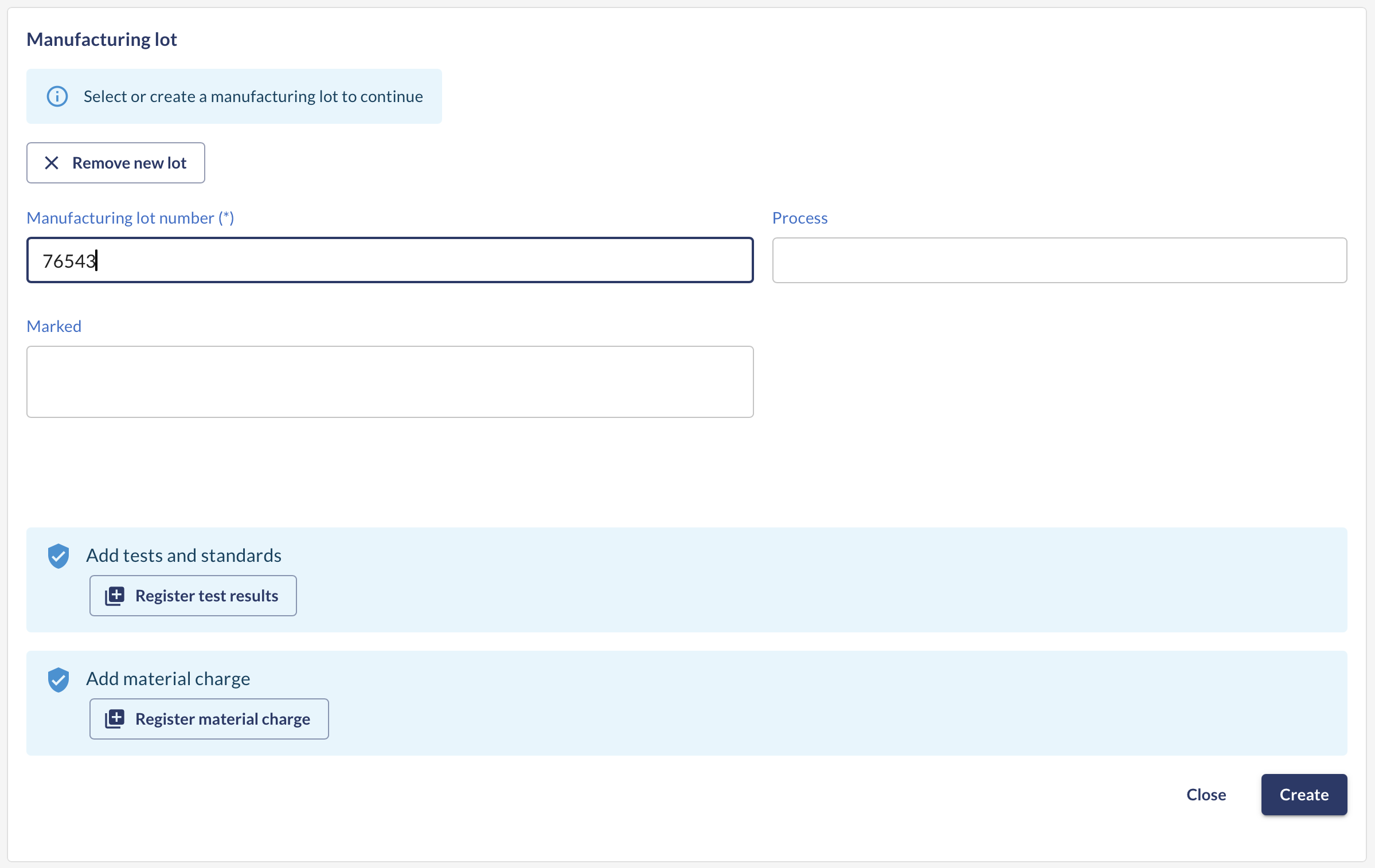
Enter the lot number relevant to the certificates that is to be attached. Then click Create down to the right. There is no need to fill in other data than the Manufacturing lot number.
You can only link ONE lot number to each record. If you deliver more than one lot number for the same customer record/order, you must duplicate the record and link the second lot to the new record. Duplicate again if you have a third lot etc. You’ll find the Duplicate button under Actions in the bottom of the form.
Add attachments to the record
Scroll down and Drag’n drop or upload the certificate PDF(s) to Shared attachments sections.
You can also add Notes.
Documents uploaded to the Shared attachments area will be shared with the customer. The Private attachments area can be used for documents that you want to upload for your own reference. These documents will not be shared with the customer.
Add as many attachments as necessary. The total file size must be below about 20 MB.
The Generate PDF button generates a coverpage with all order details. It can be added as a separate file or be merged with the pdf you upload by checking the Merge PDF attachments box.
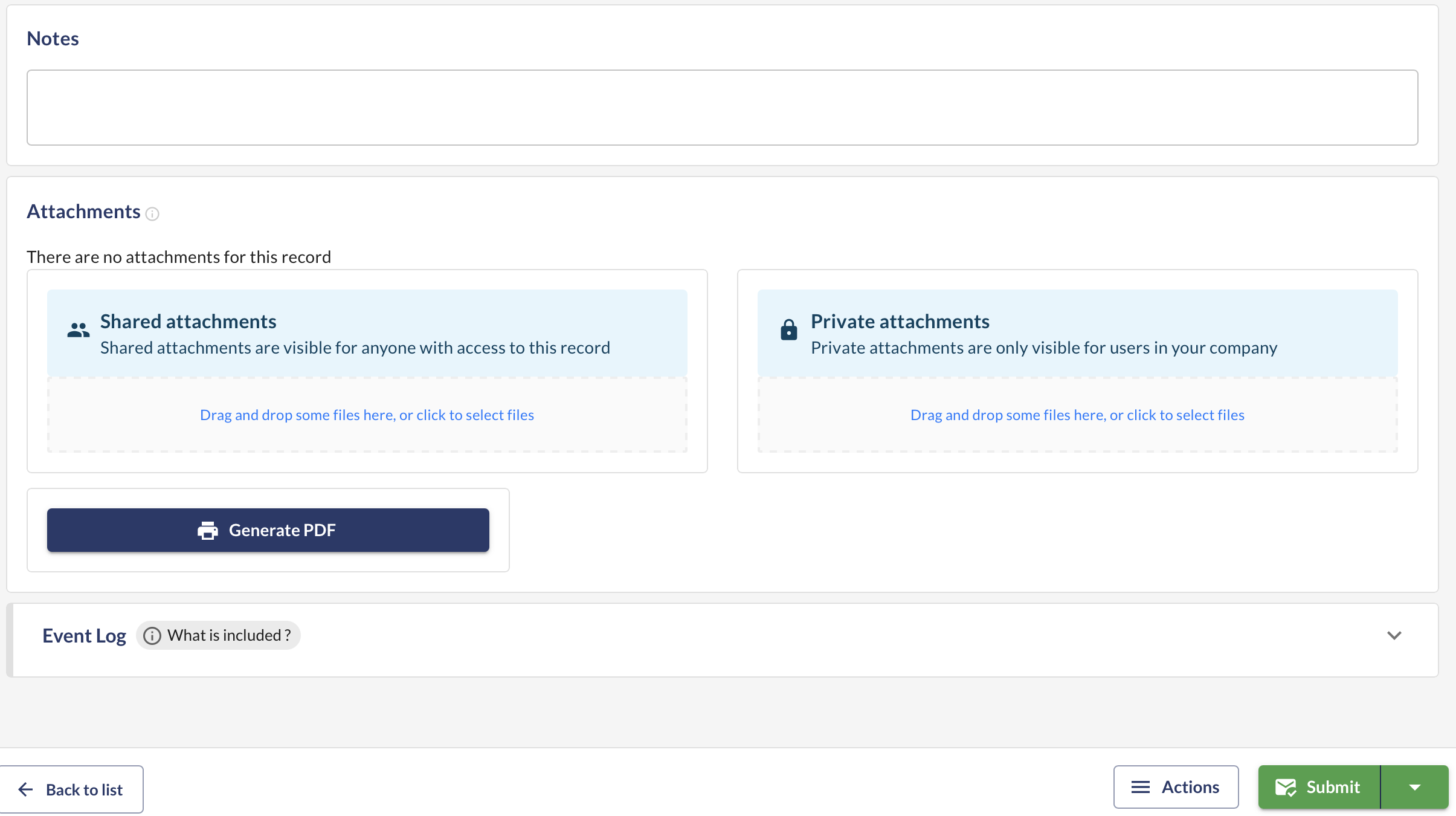
Click on Submit button to submit the record to the Customer. The submit button will only be available if there is a Lot linked to the certificate.
The record will now change status to ‘Needs Customer Approval’ and your customer will be notified that you have submitted the certificate. Once reviewed, the status will update to ‘Approved’ or potentially ‘Requested Changes’ or ‘Rejected’.