
Lot Approval record type is used to manage traceability and quality data that is related to an individual manufacturing lot or even serial number(s).
Collect Lot Approvals from suppliers
To create a Lot Approval Request to a supplier, go to Lot Approvals - Inbound and click Create new Lot Approval.
Select Product and Supplier and Type and Headers
You must select one of the pre-defined Certificate types, but the Header and Sub-header can be edited to your own needs.
Fill in any other data needed in the provided fields and click Request from supplier to make the request available to the supplier and send a notification email if enabled in company settings.
Create and Submit a Lot Approval to Customer
To send a Lot Approval (LA) to a customer, you can either create a new LA or respond to a Request created by a customer. If you are responding to an existing Request, Open the request and go directly to “Add a Manufacturing Lot number”.
Navigate to Lot Approval Outbound from the main menu
-
Click Create new lot approval to create an Outbound Lot approval.
-
Enter mandatory information, for creating the certificate
-
Select Product
-
Select customer
-
Select Certificate Type.
-
-
User can enter more relevant information to further define the Outbound
certificate such as Customer Product Information, Customer Order details, Delivery Date and Expiry Date and Notes.
-
Click on Next Step, to continue.
Add a Manufacturing Lot number
You can select an existing Lot number for the product if available. This is useful if you have a certificate from a supplier in Inbound that you want to distribute to a customer. You can also select an existing Manufacturing Lot that you previously have created in the Manfacturing module. No information about the supplier will be made available to the customer.
You can also create a new Manufacturing Lot. A Lot number is mandatory.
-
Scroll down and open the drop-down field to select an existing lot or click "Add Manufacturing lot " to create a new lot.
Depending on how the product is set up, you can now enter more information. Click Create when all data is filled in.
You can add attachments as necessary. Click Submit when you are ready to send the LA to the customer.
Review and Approve/Reject a Lot Approval from a supplier
As a customer, you’ll find all Supplier related records in the Inbound section in the left side menu. There are separate views for Lot and Part Approval.
Go to Lot Approval Inbound to find supplier related Lot Approval records.
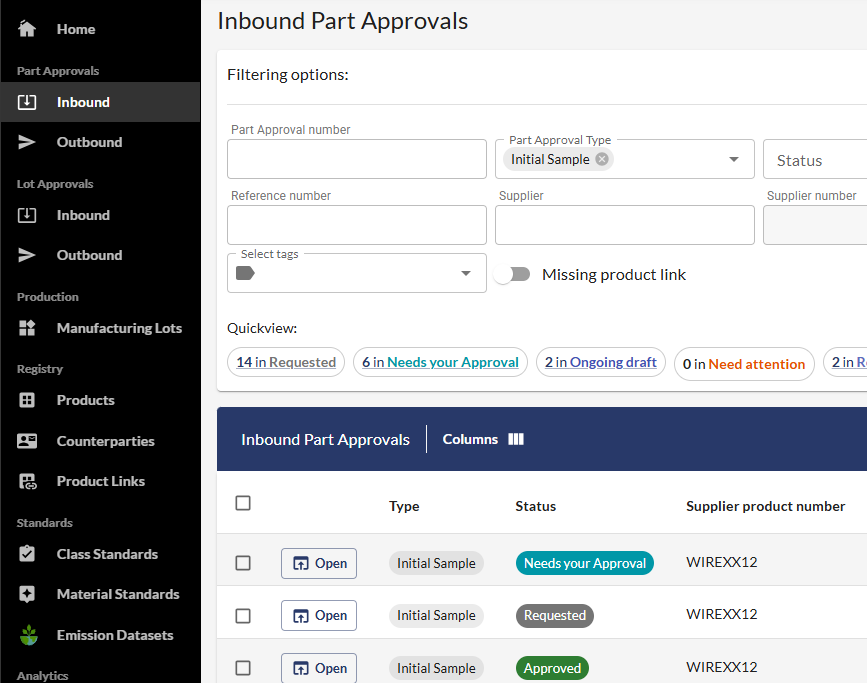
This will show a list of all records, with filtering options on top of the page. You can filter on most of the meta data for a record including any Tags that you might have added.
If you have requested records from your supplier, you will see the requests in status Requested. You will find new submissions from suppliers in status Needs your Approval.
If you have a Freemium subscription, the records from suppliers will be automatically Approved when they are submitted by the supplier.
If you have a standard subscription, the records will be in status Needs you Approval and you will be able to review and approve them yourself. A standard subscription will also allow you to:
-
Specify you requirement for each product number and assign pre-defined standards to products.
-
Auto-approve records that fulfill your defined specifications
-
Use our AI-powered “Cruncher” to automatically read pdf attachments and evaluate results to your requirements.
Review and make decision
To review and make a decision, click the Open button and review all submitted data and attachments. In the bottom of the page, you will find buttons as below. Here, you can (depending on whether you created a request or not)
-
Reject the record
-
Request Changes, which will give you the opportunity to send the record back to the supplier with a comment about changes or missing documents that need to be resolved.
-
Approve, with or without a comment to the supplier.
-
Withdraw and Resend notification is relevant if you created the initial Request to the supplier.
Automatic evaluation to requirements
Users with a standard subscription will have access to features for automatic evaluation of provided results to defined requirements.
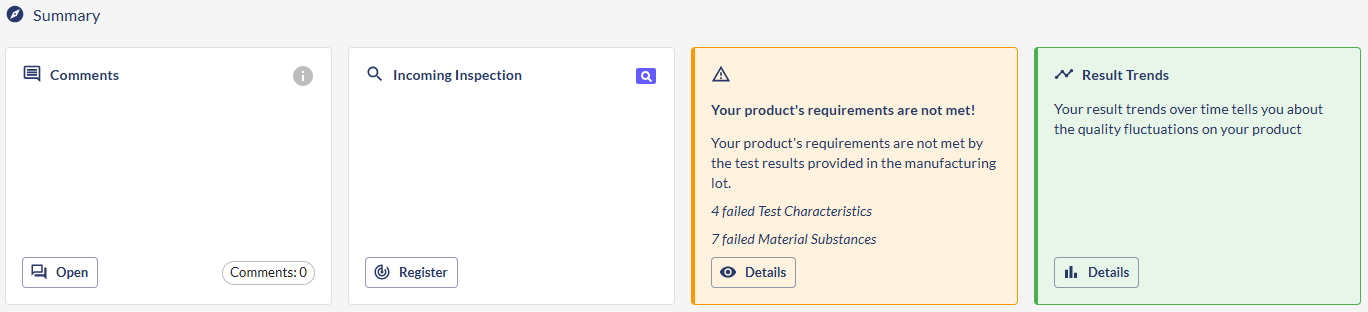
Any deviations will be highlighted on top of the page, and the results are highlighted in red if not fulfilling requirements.
If the results are only provided in a pdf, you can use our AI-powered Cruncher to extract data automatically from the pdf for evaluation.

Attach own documents
You can attached documents to the record if needed. These documents will be separated from the documents provided by the supplier.
You can attach either Private documents which will not be visible to the supplier, or Shared documents that will be available also to the supplier.
You can use Shared documents to upload an approval verification that you want to make available to the supplier when you approve a record.
Add a comment