
The Cruncher Assistant is an AI powered document scanner that is able to extract data from quality certificates and other documents. It uses the Specification of a product (Characteristics and Material) to look for and extract results in a document.
The Cruncher needs a separate subscription. Please contact ChainTraced for a quotation.
To use the Cruncher Assistant, Specifications must be setup for the product related to the certificate.
Instructions
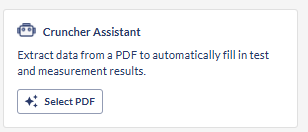
The Cruncher can be used in Lot Approval Supplier and Customer records in status Requested and Ongoing draft. Open a record and click the Select PDF button in the Cruncher Assistant box.
Upload a PDF or select a file that is already uploaded to the record. Verify in the preview that it is the correct file and click continue.
The Cruncher will first start to look for the Lot and Charge traceability numbers on the certificate. Select a suggested number or enter Lot and Charge numbers manually and select if you want to store the file on the record with the switch.
Then click Continue and Import Data.
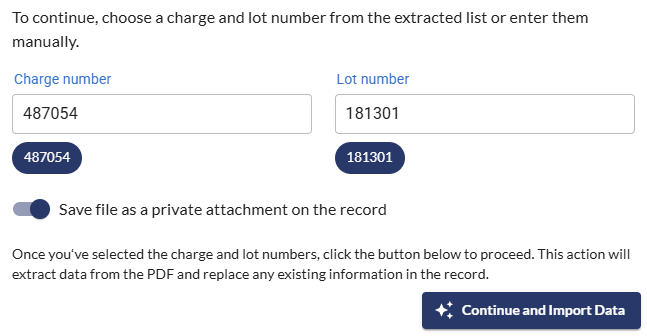
A Lot number is mandatory to continue and will be used to create a manufacturing lot for traceability.
Charge number can be left out, but if this is not stated, no material data (chemical composition) will be extracted even if material requirements are specified on the product.
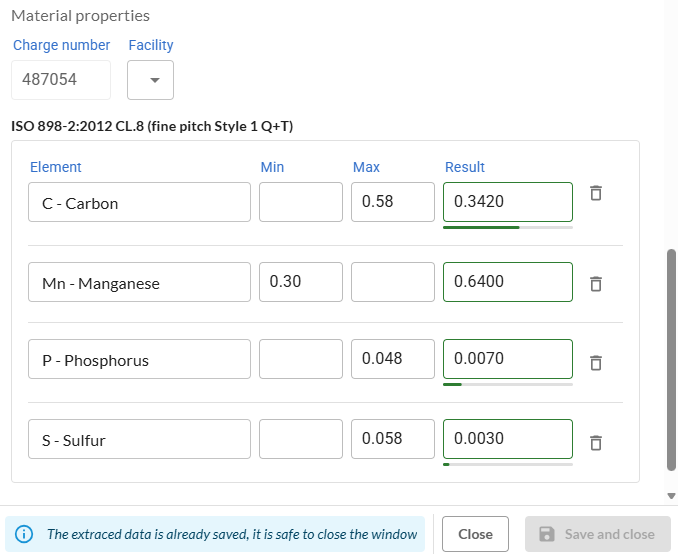
The Cruncher will start to scan the document for results to the specified characteristics and chemical composition. This might take about 30 seconds.
The results are presented in a window next to the preview window. Verify that the results are correct (AI can make mistakes). If all looks good, click Close (the results are already stored). If a result needs to be corrected, added or deleted you can do so in the window and click Save and Close (you can only click this button if you made any changes).
This will take you back to the original Record view and you can continue to work on the record or Approve/Reject the result.