
Link product numbers from Customer records list
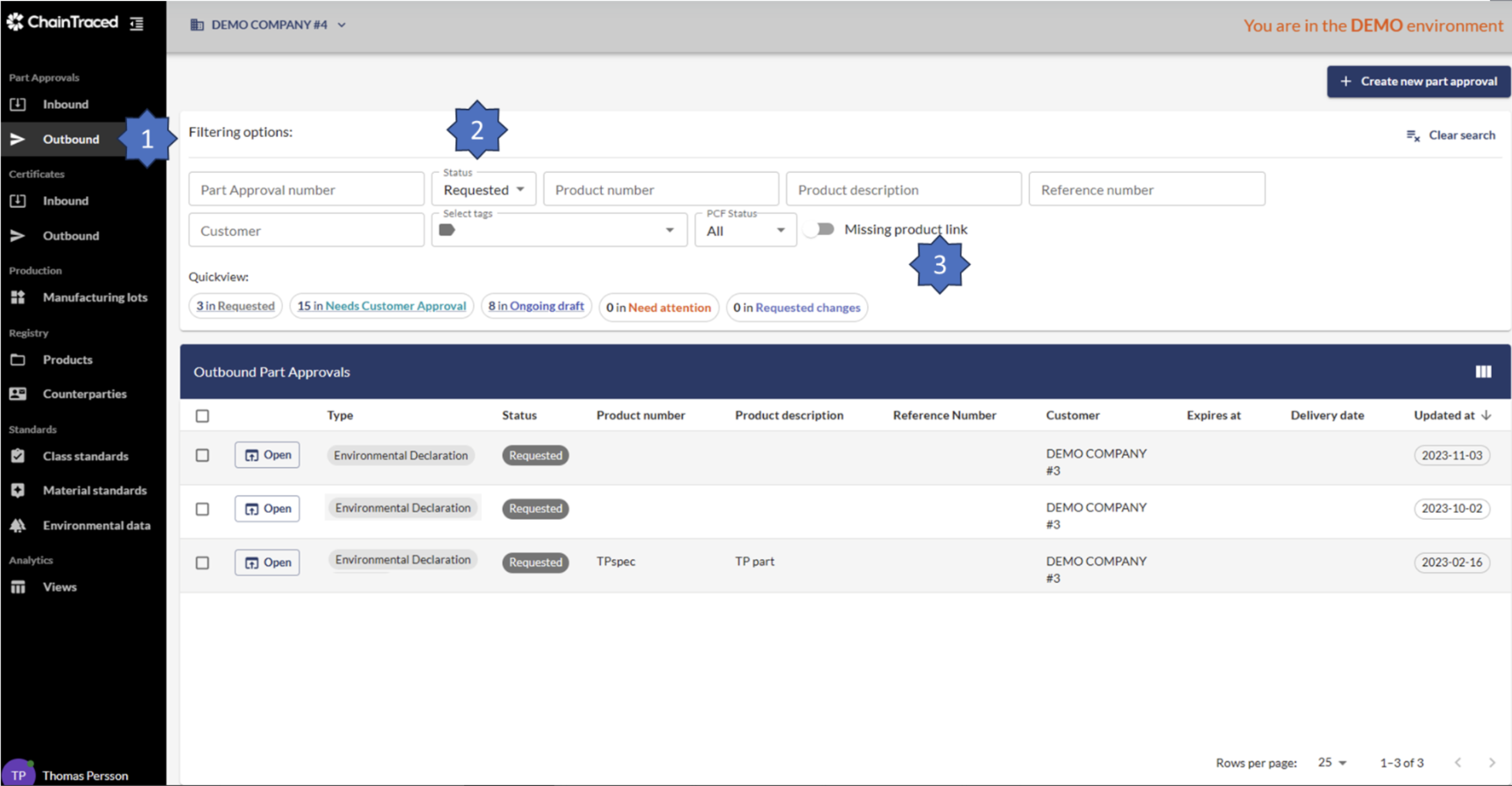
When you receive a request for customer product that is not previously linked to your corresponding product, you can link the product numbers directly from the list view.
-
If there is no number in the column Product number, it means that you must link the customer number to your product number. In the case where you have many records with different statuses, filter on status Requested(2).
-
Activate the Missing product link(3) to only view requests where your product number must be linked.
-
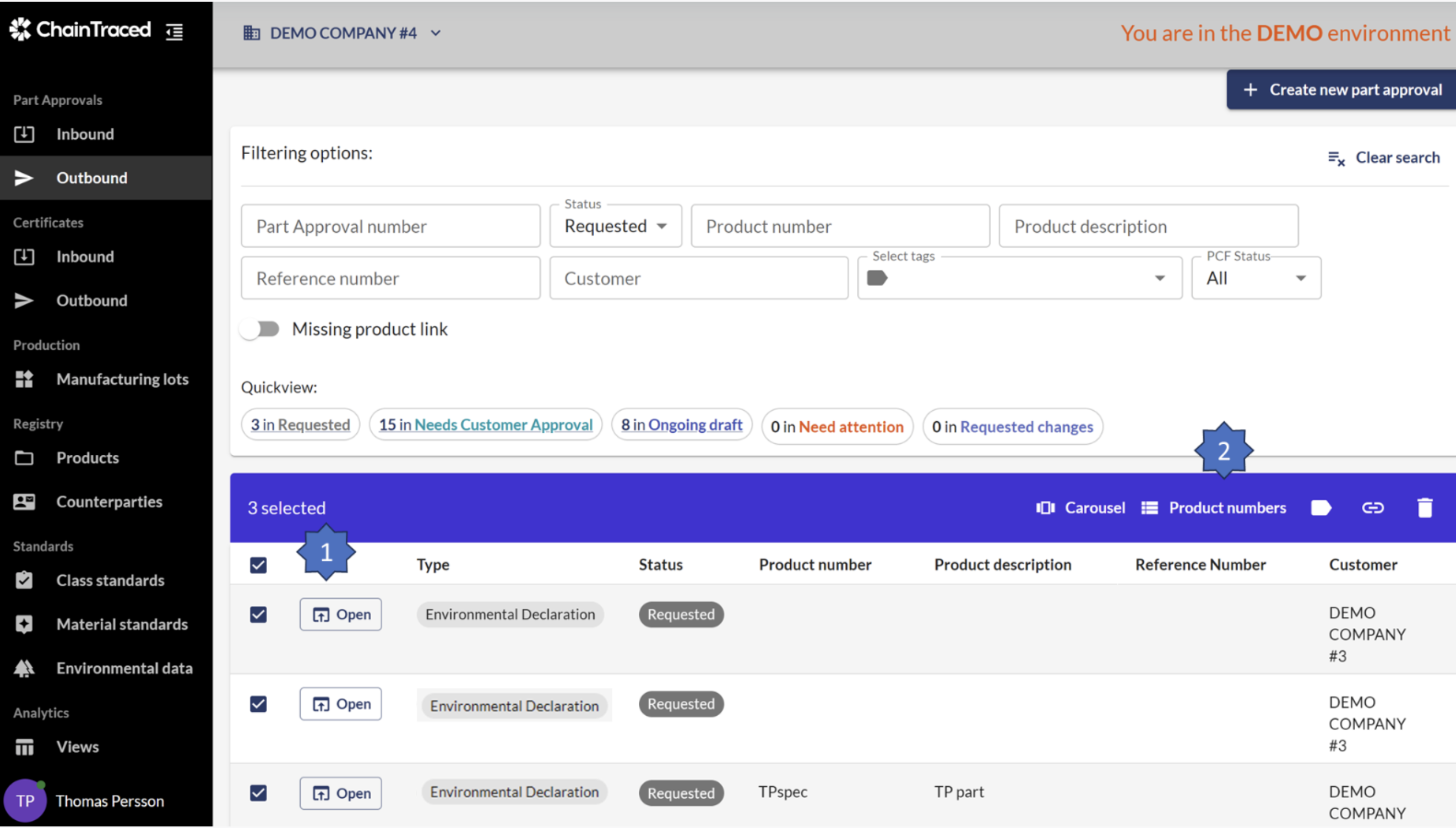
Tick the records that you want to manage(1)
-
Click on Product numbers(2).
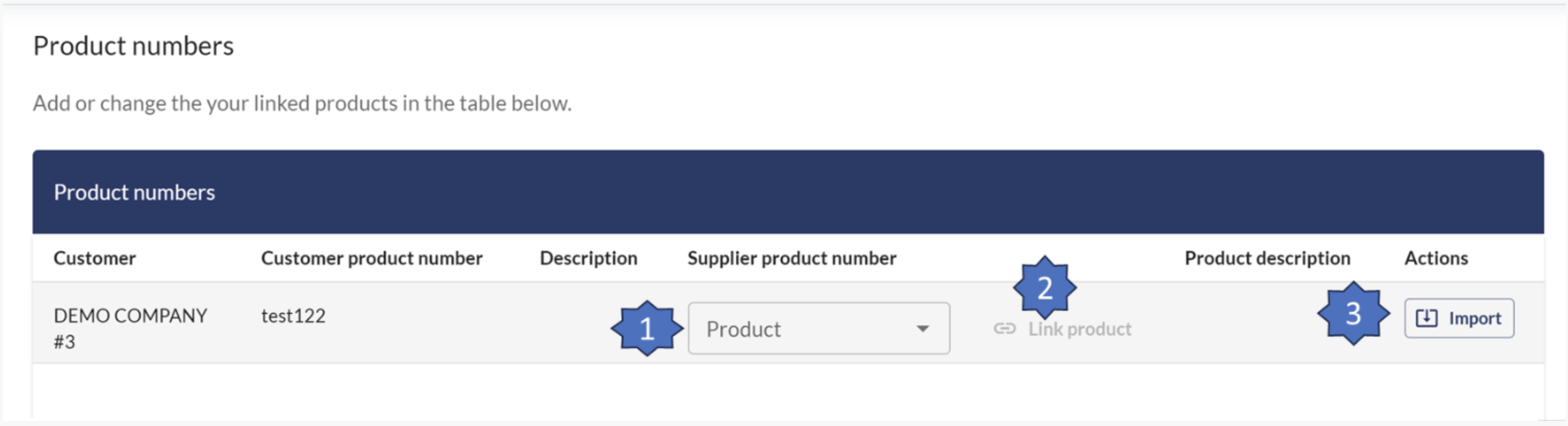
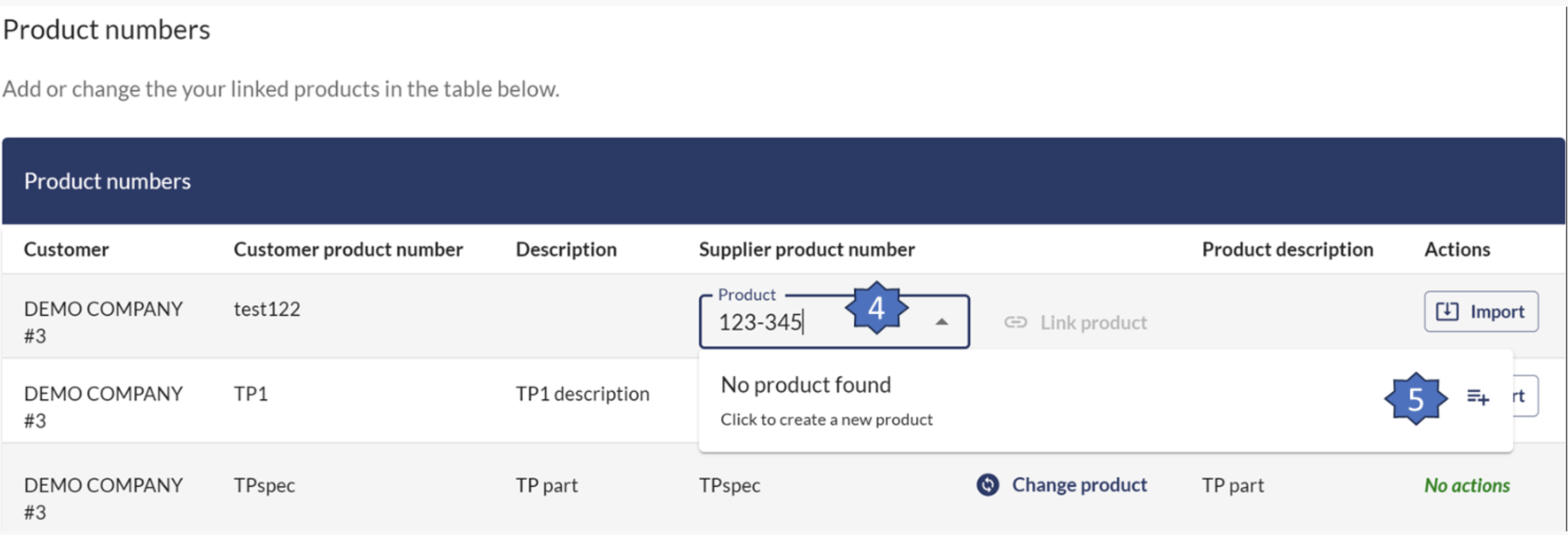
There's three ways of linking your products.
-
Pick an existing product in the dropdown(1) and click Link product(2).
-
Click Import(3) to use the same number and description as your customer.
-
Enter a new product number (4) and click the +(plus) sign (5).
Important Note:
-
Your product should only be created the first time when a new, previously unrequested product is requested by a customer.
-
If you continue receiving requests for the same product that has already been created in your ChainTraced system, it will be automatically linked to the existing product.
-
However, if needed, you can manually unlink and reassign it to a different product number.