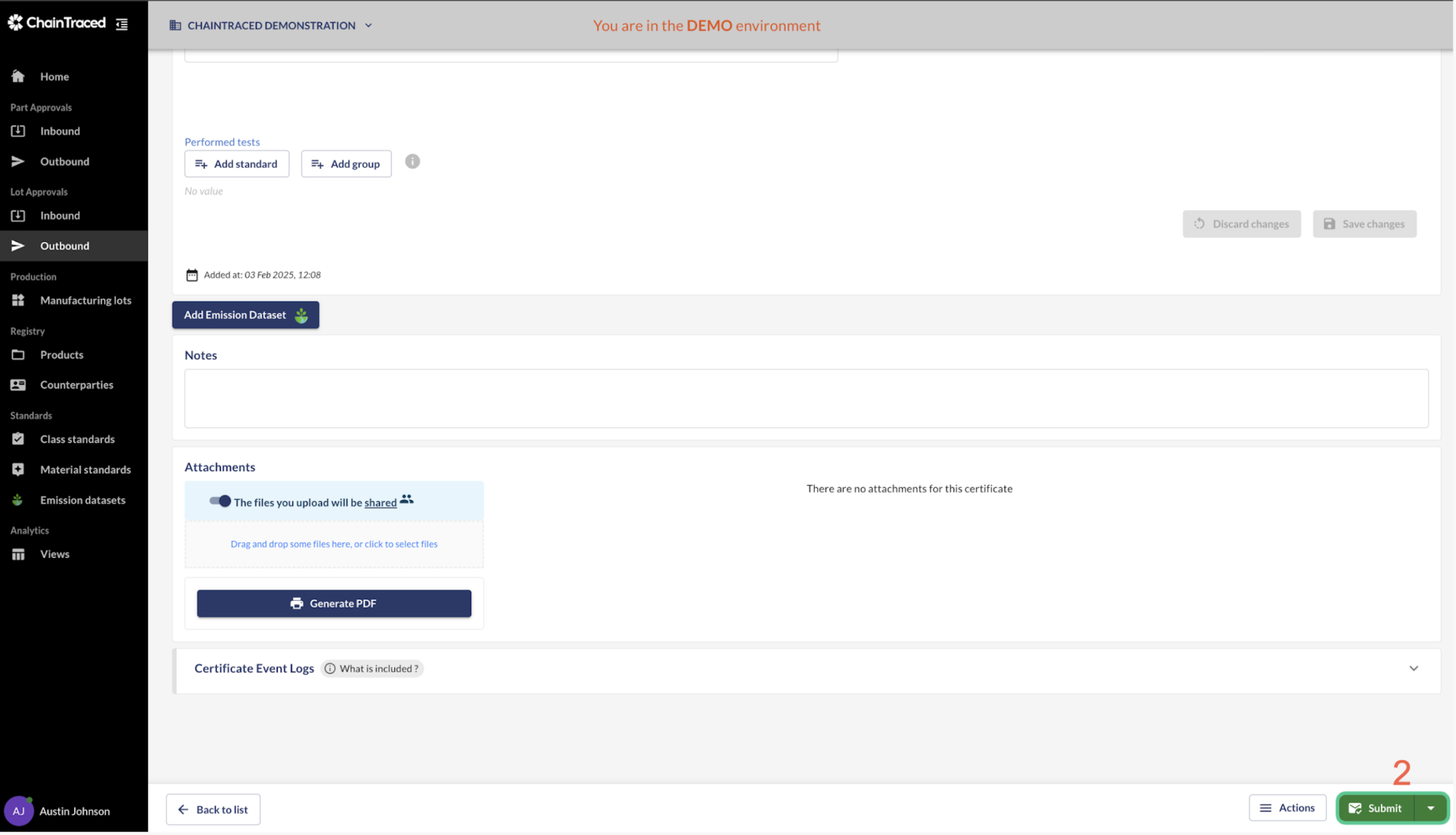
You can create and submit new records to your customer or respond to Requests created by your customer. You find all request in the Outbound sections. Part Approval Outbound has requests for Initial samples and Product Carbon Footprint. Lot Approval Outbound has requests for Certificates and other data linked to a specific delivery or lot.
Part Approval and Lot Approval are called Records in the platform.
If you have requests already created by your customer, scroll down to Link your product to the request
Create a new Customer Lot or Part Approval
-
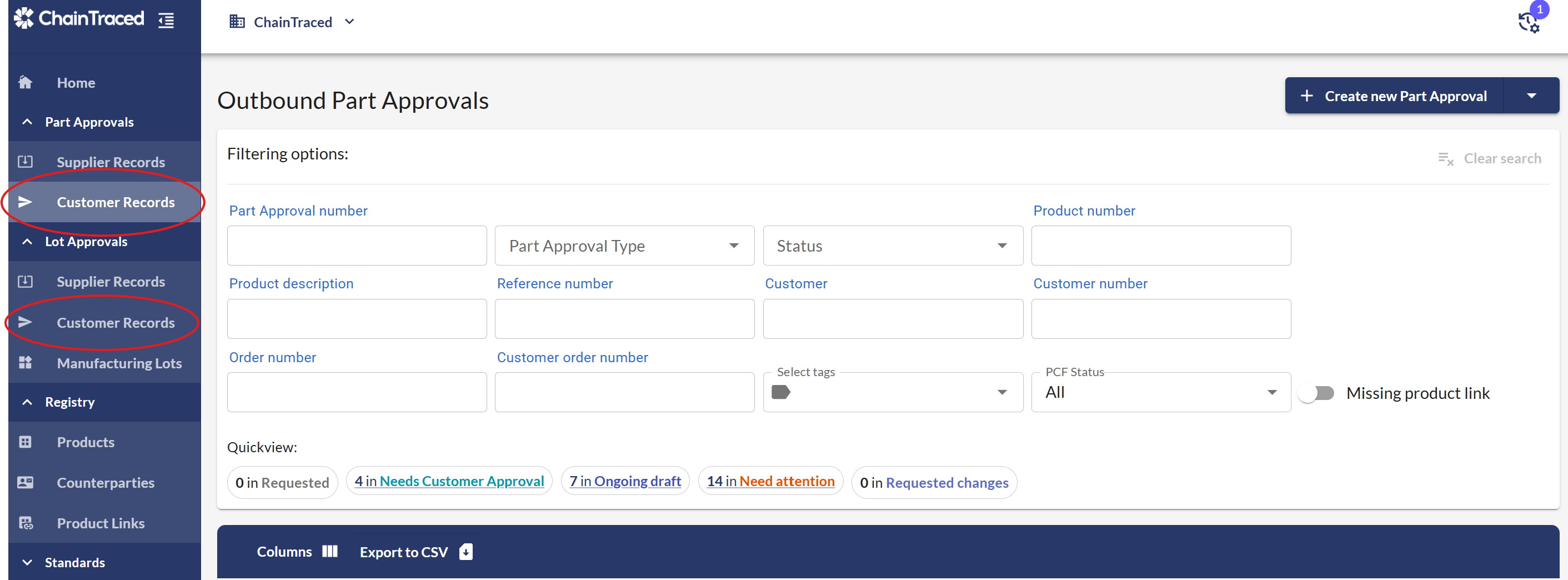
Navigate to Outbound from the main menu. Go to Part Approval Outbound for product approval such as Initial Samples. Go to Lot Approval Outbound for Certificates that are related to a specific manufacturing lot or delivery.
-
Click Create new Lot or Part approval to create an Outbound record
-
Enter mandatory information, for creating the record
-
Select Product
-
Select customer
-
Select Certificate Type
-
Enter Quantity and Unit
-
-
You can enter more relevant information to further define the Outbound
certificate For Eg.
-
Customer Product Information (If available)
-
Your Order details
-
Customer Order details (If available)
-
Delivery Date
-
Notes
-
-
Click on Next Step, to continue and create manufacturing lot
Link your product to the request
If you are responding to a created customer request, navigate to Part/Lot Approvals - Customer records from the side menu to view your customer requests.
Open the request that you want to manage.
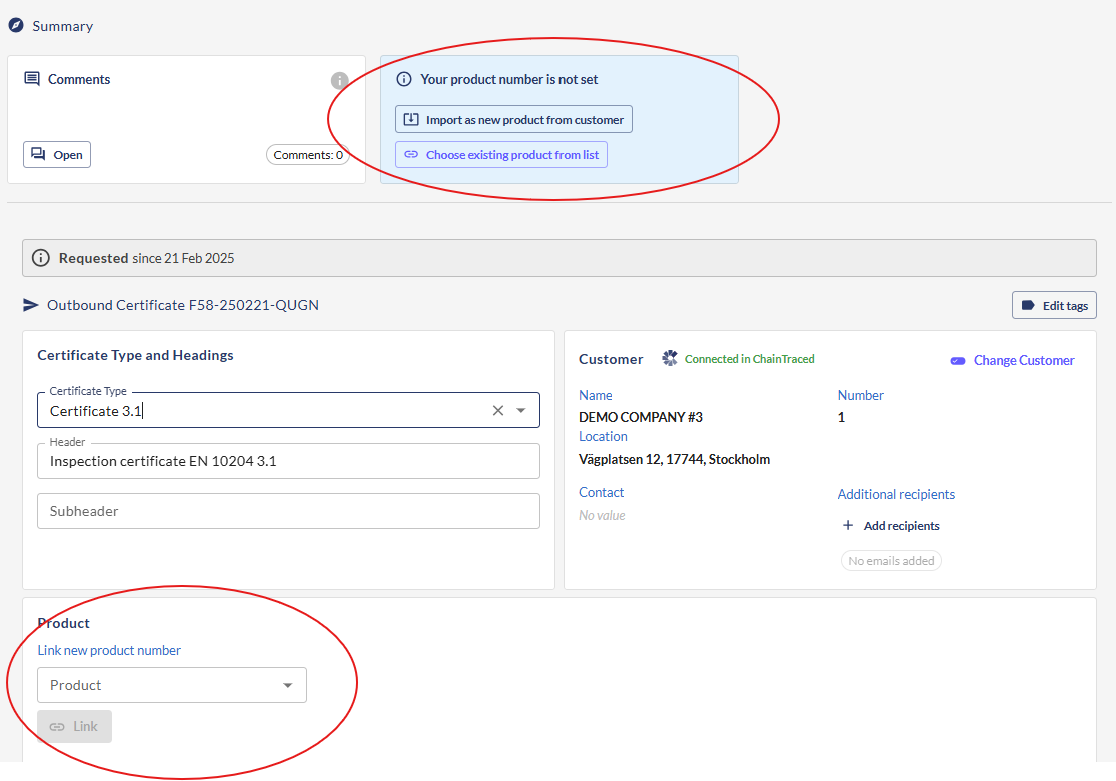
If your product number is not already linked to the request, you must do so. You can create a new product by clicking Import as new product from customer. You can change the product number and description to your own data.
If your product is already created but not linked, go down to Product section and select your product in the dropdown and Link.
Once your and the customer’s product number are linked once, the system will remember this and for the next request, the products will be linked automatically.
Create and/or link a Lot to the request
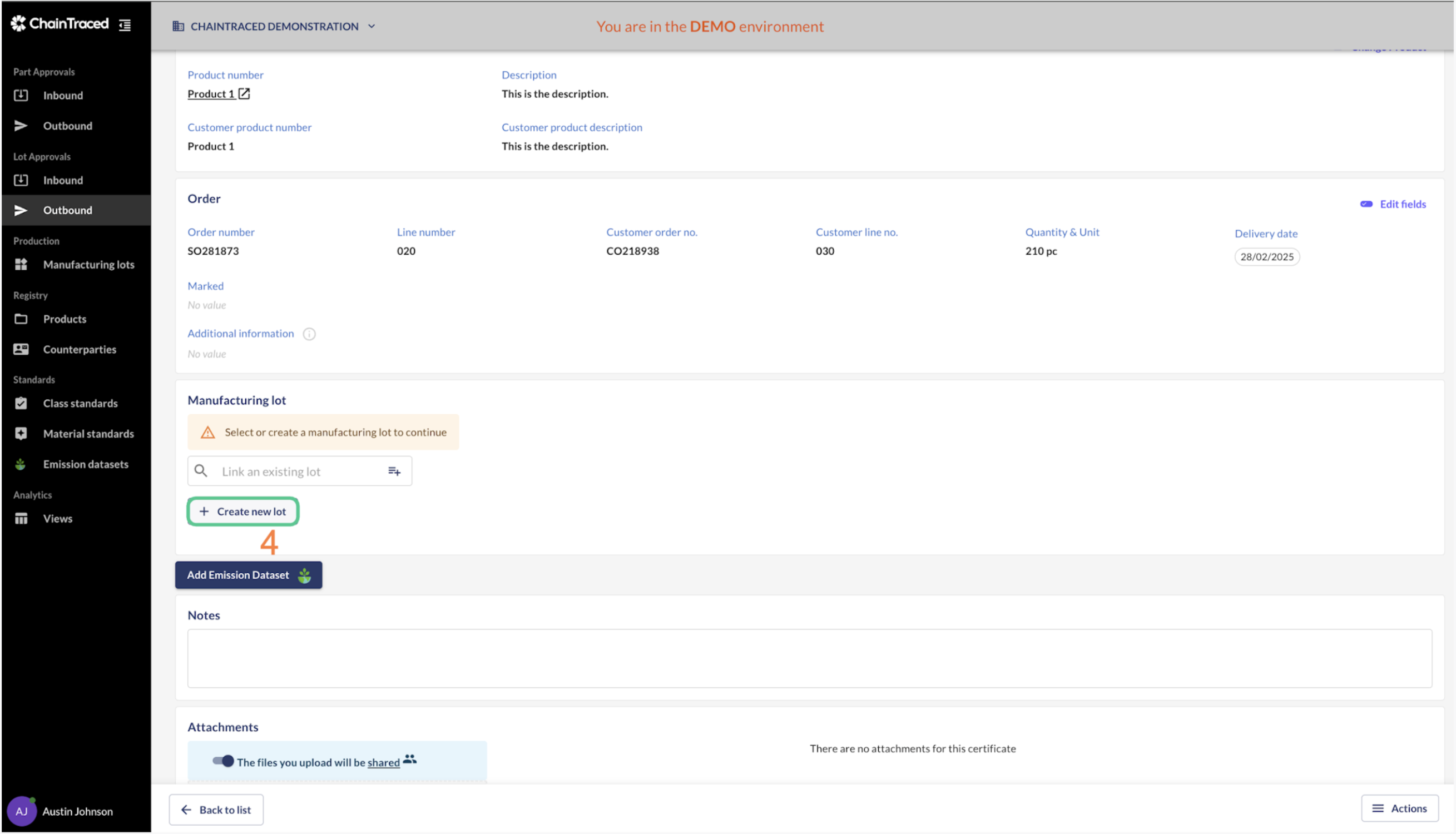
You must link a Lot number to the request for traceability purpose. You can link an existing lot or create a new lot directly in the request. This number will be stated on the documentation and can be called Lot number, manufacturing lot or batch.
To link an existing lot previously created in the module Manufacturing lots or in another request, select the drop-down “Link an existing lot” and select it.
To create a new lot, click ‘Create new lot’, enter the relevant lot number and click Create.
Depending on how the product requirements are specified, enter test results, material chemical composition etc.
If no requirements are specified on the product, move on to add attachments to the record.
Add attachments to the record
-
Scroll down and click on the Attachments section to select and add PDFs or other documents relevant for the record. You can also drag and drop files to the file area.
Documents uploaded to the Shared attachments area will be shared with the customer. The Private attachments area can be used for documents that you want to upload for your own reference. These documents will not be shared with the customer.
Add as many attachments as necessary. The total file size must be below about 20 MB.
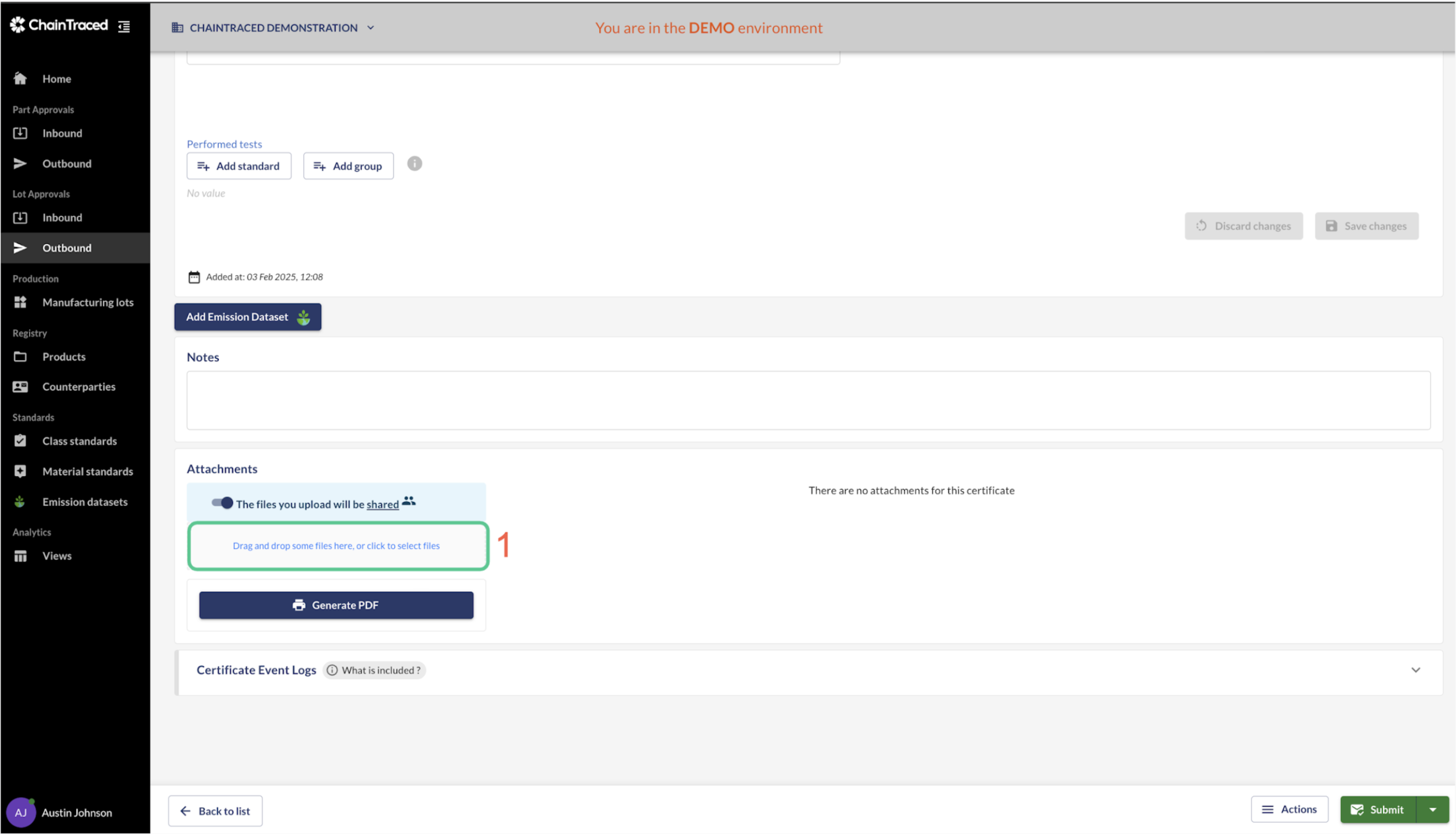
Generate a PDF certificate
A PDF certificate can be generated using the data available in the Lot and header data. The format will depend on available data and the certificate type selected for the record.
If attachments are uploaded, you can choose to merge the files into one PDF with one page for each attachment. The pages will have traceability data in the header and footer to visibly link them together if they are printed. This is a BETA feature, and you might experience problems to merge certain formats.
Submit to Customer
-
Click on Submit button to submit the record to the Customer. The submit button will only be available if there is a Lot linked to the certificate.